# API open interface
# 1. Input method
Supports handwriting, voice, numbers, and characters.
- Initialization settings
// Handwriting default:110; Voice:111; Numbers:112; Characters:113
editText.setInputType(110);

// Get the input text
editText.addTextChangedListener(new TextWatcher() {}
- Code to bring up the input method InputMethodManager
imm = (InputMethodManager) getSystemService(Context.INPUT_METHOD_SERVICE);
imm.toggleSoftInput(0, InputMethodManager.HIDE_NOT_ALWAYS);
# 2.Sharing function
# 2.1 Sharing Capacity Acquisition
- Seek out a imoo matchmaker to request an AppKey that supports sharing.
- Introducing the sdk, see 2.7 SDK download for details
# 2.2 Detecting whether a version is supported
If there is a special need, you can detect it before sharing, if not, you don't need to execute it, in the SDK for the case of unsupported version will pop up a Toast by default, suggesting that the current version does not support sharing to XX.
//Check if sharing to microchat is supported boolean isSupport = new
ShareMessageManager(context).checkBaseVersion(Scene.TYPE_CHAT);
//Check if sharing to friends circle is supported boolean isSupport = new
ShareMessageManager(context).checkBaseVersion(Scene.TYPE_MOMENT);
# 2.3 Sharing Specified Content Types
- Share text type
// Step 1: Create an XTCTextObject object and set the text property to the text content to be shared

XTCTextObject xtcTextObject = new XTCTextObject(); xtcTextObject.setText("Shared from the test program");;

// Step 2: Create XTCShareMessage object and set shareObject property to xtcTextObject object
XTCShareMessage xtcShareMessage = new XTCShareMessage(); xtcShareMessage.setShareObject(xtcTextObject);

// Step 3: Create the SendMessageToXTC.Request object and set the SendMessageToXTC.Request request = new SendMessageToXTC.Request(); request.setMessage(xtcShareMessage);

// Step 4: Create ShareMessageManagr object, call sendRequestToXTC method, pass in SendMessageToXTC.Request object and AppKey
new ShareMessageManager(this).sendRequestToXTC(request, "appkey");
- Share image type
// Step 1: Create an XTCImageObject object and set the bitmap property to the image you want to share.
XTCImageObject xtcImageObject = new XTCImageObject(); xtcImageObject.setBitmap(BitmapFactory.decodeResource(getResources(), R.mipmap.img_show));;
// If the image is in a public directory, you can set the image path directly

xtcImageObject.setImagePath("filePath");


// Step 2: Create XTCShareMessage object and set shareObject property to xtcTextObject object
XTCShareMessage xtcShareMessage = new XTCShareMessage(); xtcShareMessage.setShareObject(xtcImageObject);

// Step 3: Create SendMessageToXTC.Request object and set message property to xtcShareMessage
SendMessageToXTC.Request request = new SendMessageToXTC.Request(); request.setMessage(xtcShareMessage);
request.setFlag(1);//set the jump parameter, set to 1 for successful sharing to stay in the microchat or circle of friends, set to 0 or do not set the sharing success will return to the original sharing interface

// Step 4: Create ShareMessageManagr object, call sendRequestToXTC method, pass in SendMessageToXTC.Request object and AppKey
new ShareMessageManager(this).sendRequestToXTC(request, "appKey");
- Share program type (graphic type)
// Step 1: Create the XTCAppExtendObject object.
XTCAppExtendObject xtcAppExtendObject = new XTCAppExtendObject();
//Set the page that will be launched by clicking on the shared content

xtcAppExtendObject.setStartActivity(MainActivity.class.getName());
//Set the extension information for sharing, clicking on the shared content will bring the extension information to the jump page xtcAppExtendObject.setExtInfo("ExtendInfo");

// Step 2: Create XTCShareMessage object and set shareObject property to xtcTextObject object
XTCShareMessage xtcShareMessage = new XTCShareMessage(); xtcShareMessage.setShareObject(xtcAppExtendObject);
// Setting the picture xtcShareMessage.setThumbImage(BitmapFactory.decodeResource(getResourc es(), R.mipmap.img_app));
//Set the text
xtcShareMessage.setDescription("This is a graphic sharing message");;


// Step 3: Create SendMessageToXTC.Request object and set message property to xtcShareMessage
SendMessageToXTC.Request request = new SendMessageToXTC.Request(); request.setMessage(xtcShareMessage);
request.setFlag(1);//set the jump parameter, set to 1 for successful sharing to stay in the microchat or circle of friends, set to 0 or do not set the sharing success will return to the original sharing interface

// Step 4: Create ShareMessageManagr object, call sendRequestToXTC method, pass in SendMessageToXTC.Request object and AppKey
new ShareMessageManager(this).sendRequestToXTC(request, "appKey");
# 2.4 Share callback
// Step 1: Implement the IResponseCallback interface on the click-to-share page.
public class MainActivity extends Activity implements IResponseCallback{...}


// Step 2: Handling callbacks in onCreate, onNewIntent methods private IXTCCallback xtcCallback;
protected void onCreate(Bundle savedInstanceState) { super.onCreate(savedInstanceState); setContentView(R.layout.activity_main);

//Processing callbacks
xtcCallback = new XTCCallbackImpl(); xtcCallback.handleIntent(getIntent(), this);
}
protected void onNewIntent(Intent intent) { super.onNewIntent(intent);
setIntent(intent).
//Processing callbacks xtcCallback.handleIntent(intent, this);
}
// Step 3: Implement onResp and onReq methods
public void onResp(boolean isSuccess, BaseResponse response) {
//to-do
}
public void onReq(ShowMessageFromXTC.Request request) {
//to-do
}
- onResp method
This method is a callback for sharing result information after being used to click share.
| Field | Description |
|---|---|
| isSuccess | Whether to share the success |
| response.getCode() | Callback status code, specifically can be determined by BaseResponse.Code |
| response.getErrorDesc() | Description of the status code |
| response.getConversationId() | The shared session ID in the circle of friends is -1, which is returned after encrypting the session ID of the chat |
| response.getTransaction() | Unique Sharing |
- onReq method
This method is used for the callback that will jump to the specified page after clicking on the shared program information in the microchat or circle of
| Field | Description |
|---|---|
| request.getExtInfo() | The extInfo property set by the XTCAppExtendObject object |
| request.getScene() | Shared to the scene, scene.getType() to determine the scene type, Scene.TYPE_CHAT is chat,Scene.TYPE_MOMENT is Friends' Story |
| request.getTransaction() | Unique ID sharing |
# 2.5 Sharing in specific channels
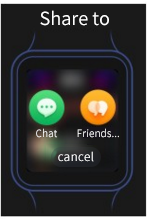
In addition to the above mentioned channel selection page after clicking Share (as shown above), you can also skip the channel selection page to directly share to the designated channel, the details of the method are as follows:
- Share to chat
// Step 1: Create the scene Chat
chat = new Chat();
//Allowed sessions to be displayed, if not set defaults to friends and groups of friends
chat.setFriendType(Chat.FRIEND|Chat.FRIEND_GROUP);
// Friends to filter, pass in a list of conversionIds (conversionId comes from the onReq method)
chat.setFilterConversationList(filterConversationList);
//Filter type chat.setFilterModeList(filterModeList)
//Click filtered friends require Toast text content chat.setFilterTip(context.getString(R.string.share_error_limit));

// Step 2: Set the scene to the SendMessageToXTC.Request object
SendMessageToXTC.Request request = new SendMessageToXTC.Request(); request.setScene(chat);
- Share to Friends' Story
// Step 1: Create the scene
Moment moment = new Moment();

// Step 2: Set the scene to the SendMessageToXTC.Request object
SendMessageToXTC.Request request = new SendMessageToXTC.Request(); request.setScene(moment );
# 2.6 Cautions
- new ShareMessageManager(context), the context must be an Activity.
- Try to use 8-bit icons for application icons, otherwise the icons will be too big after compression and take up more server resources.
- For both the share and jump screens, you need to add the exported = ture tag.
- If your APP has obfuscation enabled, please configure the sharing related classes not to be obfuscated, otherwise it will lead to sharing failure.
-keep class com.xtc.shareapi.**{*;}
# 2.7 SDK Download
Contact imoo to get it.
# 3.Acquisition of steps
- First, you need to declare the step permission in AndroidManifest:
<uses-permission android:name="com.xtc.motion.permission.READ_MOTION_STATE"/>
As the old version does not have custom permissions, can be obtained directly, so in order to adapt to the old version, you need to first call the method to get the number of steps once (code example getMotionStep() method, you need to try catch, to prevent crashes).
- If it is not obtained, then go to apply for step permission; refer to the following example for the code of applying customized permission to read steps.
- If the steps are fetched properly, the processing logic is executed directly with the fetched steps
Override the onRequestPermissionsResult method to receive authorization results. After calling the popup authorization box, the
- If the user clicks agree to authorization, onRequestPermissionsResult is called back to the result of successful authorization. Methods can be called to get the number of steps;
- If the user does not agree, onRequestPermissionsResult will call back to the authorization failure, which does not get the number of steps and needs to be processed by itself.
The code example is as follows:
//Authorization related CODE
private static final int PERMISSION_CODE = 1000;


//Read step authority
private static final String READ_MOTION_STATE = "com.xtc.motion.permission.READ_MOTION_STATE";

private static final String[] permissions = new String[]{ READ_MOTION_STATE
};


private void initStepData(){ int step = getMotionStep(); if(step == -1){
If //step is -1, it means that the number of steps has not been obtained, and you need to apply for step privileges.
ActivityCompat.requestPermissions(this, permissions, PERMISSION_CODE);
} else{
//Not -1 means that the number of steps has been fetched, execute the step handling logic
todo doYourSelfBussiness method
}
}


Callbacks for //Activiity requesting permissions @Override
public void onRequestPermissionsResult(int requestCode, @NonNull String[] permissions, @NonNull int[] grantResults) {

if (requestCode == PERMISSION_CODE) {
if (grantResults.length > 0 && grantResults[0] == PackageManager.PERMISSION_GRANTED) {
//Agree to the authorization then call the method to get the number of
steps
getMotionStep();
} else {
// If the user does not agree to the authorization, he/she needs to do the processing himself/herself
todo doYourSelfDealUserUnauthorized method
}
}
}


//Get the number of steps private int getMotionStep(){
ContentResolver contentResolver = this.getContentResolver(); Uri uri = Uri.parseint("content://com.xtc.motion/step"); Cursor cursor = null;
int step = -1; try {
cursor = contentResolver.query(uri, null, null,null, null);

if (cursor ! = null && cursor.moveToNext()) {
step = cursor.getInt(cursor.getColumnIndex("step")); LogUtil.i(TAG, "getMotionStep : "+step);
}
} catch (Exception e) {
Log.e(TAG, "getMotionStep",e);
} finally {
if (cursor ! = null) { cursor.close();
}
}
return step.
}
# 4. X10 Flip Up Adaptation
Supports third-party apps to listen to the status of the watch flip cover.
- initial state
Read persist.sys.hall.opened value using android.os.SystemProperties; true for opened state
- real-time monitoring
| function | The key value unified in the latest version | X10 old version key value | Description |
|---|---|---|---|
| close | 1004 | 287 | Starting from version 1.5.5 of the X10 system, it has been uniformly set to 1004. Before X10, it was 287, X10 Ultimate Edition has always been 1004 |
| open | 1003 | 288 | Starting from system version 1.5.5, X10 has been uniformly set to 1003, while versions prior to X10 were 288, X10 Ultimate Edition has always been 1003 |
In a nutshell: For third-party versions, just use 1004 and 1003 to judge!
Because the 1.5.5 system version of the X10 watch has been released over a year ago, subsequent third parties that access it will not release to a version prior to that one.
//Real-time listening @Override
public boolean onKeyDown(int keyCode, KeyEvent event) { if(keyCode == 1004){
// Close
} else if(keyCode == 1003){
// Open
}
return super.onKeyDown(keyCode, event);
}
# 5. Notification bar adaptation
Whether it's Spreadtrum platform or Qualcomm platform, the third-party ones just copy the code below with slight modification and send the notification!!!! Note: The system has been customized so that the notification bar used to start the foreground service at 8.0 startup will not be displayed. If you want to show the music notification bar, follow the music notification bar code below, don't combine it with the notification bar that starts the foreground service. Meaning: if you use the foreground service to play music, and then want to show the music notification bar, then make two notification bars. A notification bar is used to start the frontend service and is not displayed, and another music notification bar is displayed to control music playback.
- Display Notice
// This sentence must be called. Don't miss it.
NotificationHelper.createDefaultChannel(getApplicationContext());
NotificationManager manager = (NotificationManager) getApplicationContext().getSystemService(Context.NOTIFICATION_SERVICE);
Notification notification = new NotificationCompat.Builder(getApplicationContext(), NotificationHelper.DEFAULT_CHANNEL_ID)
.setContentTitle("imoo Notification Title")
.setContentText("imoo Notification Content")
.setTicker("A new message")
.setWhen(System.currentTimeMillis())
.setSmallIcon(R.drawable.notification)
.setLargeIcon(BitmapFactory.decodeResource(getResources(), R.drawable.notification))
.build(); manager.notify(1, notification);
Creating a channel
public class NotificationHelper {
public static final String DEFAULT_CHANNEL_ID = "1024";
public static final String FROEGROUND_SERVICE_CHANNEL_ID = "1025";
/**
* :: Default channels
* @param context
*/
public static void createDefaultChannel(Context context){
if (context ! = null && android.os.Build.VERSION.SDK_INT >= android.os.Build.VERSION_CODES.O) {
NotificationChannel chan1 = new NotificationChannel(DEFAULT_CHANNEL_ID, "notification", NotificationManager.IMPORTANCE_HIGH);
NotificationManager notificationManager = (NotificationManager) context.getSystemService(
NOTIFICATION_SERVICE).
if(notificationManager ! = null){ notificationManager.createNotificationChannel(chan1);
}
}
}
}
# 6. Music notification bar
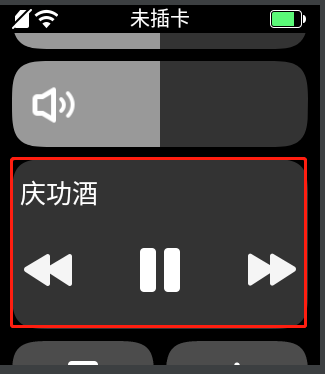
For better music notification experience, the new version of desktop has unified the display of music notification, which will be shown in the dial drop-down and lock screen.
- shortcut display
- lock screen display
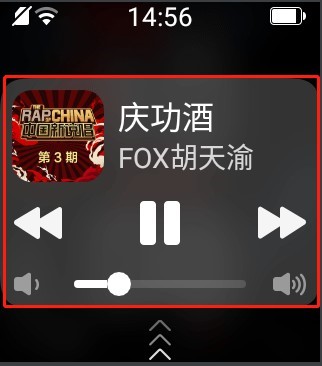
Third-party needs to adapt music notification sdk (contact imoo for sdk and demo) Note: Music apps that have not been adapted will not be able to pop up notifications in the new version.
Integrated music notification sdk
When playing music, it supports displaying the current information in the music control/notification bar, as well as shortcut previous/next/pause/play.
- Add music sdk dependency
android {
repositories { flatDir {
dirs 'libs'
}
}
}
dependencies {
implementation(name: 'xtc_music_notification_1.0.1', ext: 'aar') // xtc_music_notification.aar file into project libs/ directory.
}
- If it is a foreground notification, you need to set the foreground process alive (foreground notification will not be shown).
/* If the foreground process is alive, this notification will not be displayed */
Notification notification = new Notification.Builder(this).build(); startForeground(FOREGROUND_ID, notification).
- Music notification build
MusicNotification musicNotification = new MusicNotification.Builder()

.context(this)
.layout(R.layout.notification_remote_view)/* the layout file id of the notification displayed on lower versions, for compatibility with D3 models, use RelativeLayout for the root layout */
.tvSongName(R.id.tv_song_name,/* The "song name" control id in the notification, must be a TextView */
PendingIntent.getBroadcast(this, REQUEST_CODE_SKIP_TO_SPLASH, new Intent(this,
NotificationMusicReceiver.class).setAction(ACTION_NOTIFICATION_START_AP P),
PendingIntent.FLAG_UPDATE_CURRENT))/* Click on the song name, trigger Intent*/

.ivPrevious(R.id.iv_previous, /* The "previous song" control id in the notification, must be an ImageView */
PendingIntent.getBroadcast(this, REQUEST_CODE_PREVIOUS. new Intent(this,
NotificationMusicReceiver.class).setAction(ACTION_NOTIFICATION_PREVIOUS)
, PendingIntent.FLAG_UPDATE_CURRENT))/* Click "Previous Song", trigger Intent*/

.ivNext(R.id.iv_next, /* The "next song" control id in the notification, must be an ImageView */
PendingIntent.getBroadcast(this, REQUEST_CODE_NEXT, new Intent(this,
NotificationMusicReceiver.class).setAction(ACTION_NOTIFICATION_NEXT)
, PendingIntent.FLAG_UPDATE_CURRENT))/* Click "next song", trigger Intent */

.playPause(R.id.iv_play_pause, /* The "play/pause" control id in the notification, must be an ImageView */
PendingIntent.getBroadcast(this, REQUEST_CODE_PLAY_PAUSE, new Intent(this,
NotificationMusicReceiver.class).setAction(ACTION_NOTIFICATION_PLAY_PAU SE)
, PendingIntent.FLAG_UPDATE_CURRENT))/* Click "Play/Pause", trigger Intent */
.playPauseRes(R.drawable.selector_action_pause_song, R.drawable.selector_action_play_song)/* Resource ids to display for "play/pause" state */

.tvSinger(R.id.tv_singer_name)/* The "Singer Name" control id in the notification, must be a TextView, can be none */

.contentIntent(PendingIntent.getActivity(this, 1, new Intent(this, MainActivity.class),
PendingIntent.FLAG_UPDATE_CURRENT))/* Triggered by click notification */
.build();
// 1.0.1
RemoteViews remoteMusicViews = result.getRemoteMusicViews();/* If you want to have other displays, you can also use the RemoteViews API directly*/.

remoteMusicViews.setOnClickPendingIntent(R.id.tv_close,PendingIntent.getBr oadcast(
this,2,new Intent(this, NotificationMusicReceiver.class).setAction(ACTION_CANCEL_NOTIFICATION),
PendingIntent.FLAG_CANCEL_CURRENT));/* Cancel button, required by music notification specification */
1.	Music Notification Delivery and Updates
// Display playback musicNotification.showSongName(songName) /* song name */
.showSinger(singer)/*singer**/
.showAlbumCover(albumCoverUrl)/* the new version of the lock screen support, show the album picture, here pass in the picture url */
.showPlay()/* currently playing */

.send();/* send notification */
// Display pause
musicNotification.showPause().send();/* show paused music notification, in order to match the system process strategy, to avoid exception, if showPlay() is not called after 5min, the notification will be canceled automatically*/
// Cancel music notifications musicNotification.cancel();/* cancel music notification */
Self-test after adaptation
| Watch Model\Desktop Version | Install Launcher_old.apk | Install launcher_new.apk |
|---|---|---|
| Z3 / Z5 / X10 / X10 Ultimate Edition / Z7 | 1. Notification bar shows music notification, click music control button, functions normally | 1. Notification bar does not show music 2. Dial interface drop down, display music control, click music control button, function normal 3. Unplugged state, music playback process, lock screen display music notification |
| D3 | ibid↑ | No validation required at this time |
# 6. Webview web page function
Provides support for the ability to open web pages on the watch and the ability for web pages to interact with the watch in a number of ways. webSDK (opens new window)
# 7. Camera to take pictures, album to get pictures function
Generic Interface Calls Photo Documentation (opens new window)
# 8. demo download
Contact imoo to get it.
# 9. Pending support functions
- push
- localization
- Small video recording
- Doing activities consumes points
# 10. Data migration
The imoo app " Transfer Assistant " provides data migration between different models and versions.
- Allow all data within the application to be backed up and restored: add android:allowBackup="true" to the
<application>tag in the AndroidManifest manifest file - The application needs to define its own backup and recovery data, you can set backupAgent in the
<application>tag of the AndroidManifest manifest file and implement a subclass that inherits BackupAgent, please refer to the Android standard development documentation for details.